
Ansys Lumerical_2025 R2 Installation Instructions in Windows
Ansys Lumerical_2025 R2 Installation Instructions in Windows
Note: For latest version of Ansys, check CIC software repo (http://swrepo.iitkgp.ac.in).
1. Run \\swrepo.iitkgp.ac.in to login in to the software repo Login Id/Password : guest
2. Go to Software Repository
3. Go to folder Ansys2025R2
4. Go to folder Win and download respective ansys module zip package.
(e.g. for Lumerical, download LUMERICAL_2025R2.04_WINX64.zip package)
5. Extract the package to LUMERICAL_2025R2.04_WINX64 folder.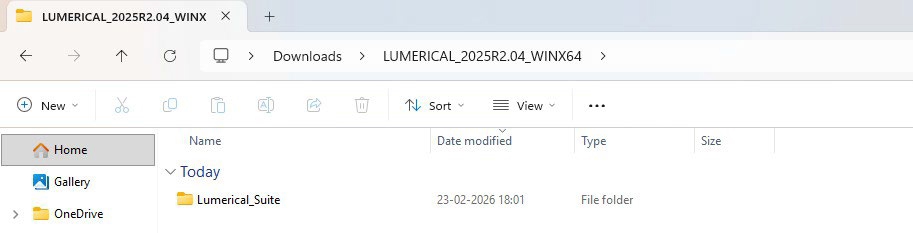
6. Go to LUMERICAL_2025R2.04_WINX64\Lumerical_Suite folder, right click on
Lumerical_Installer file and click “Run as administrator”.
7. Click Install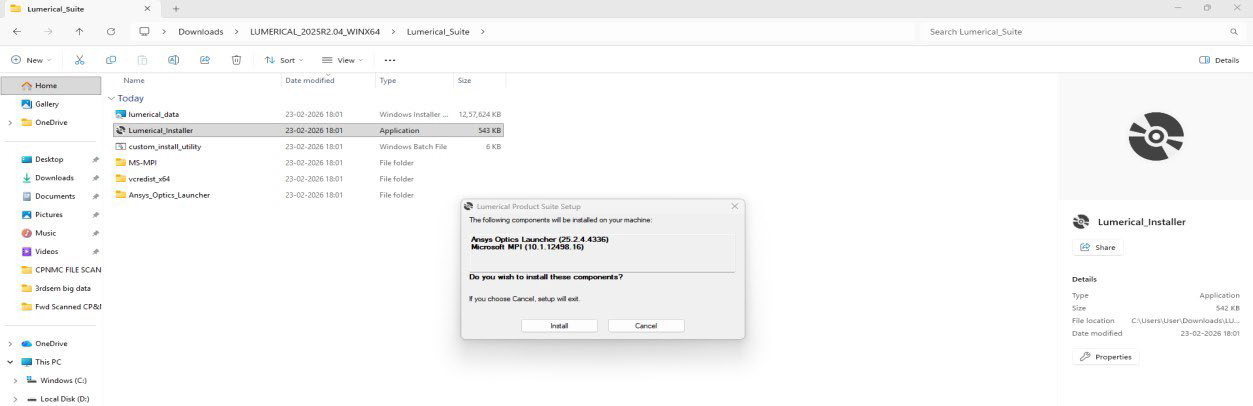
8. Click Next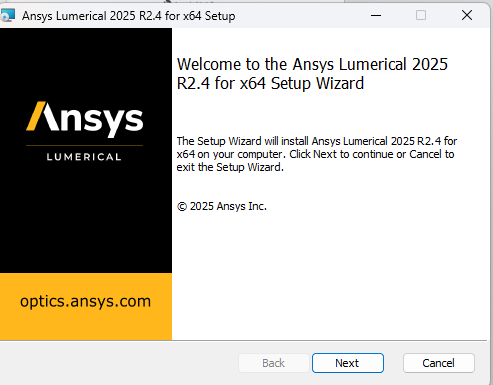
9. Check Terms and conditions button and click Next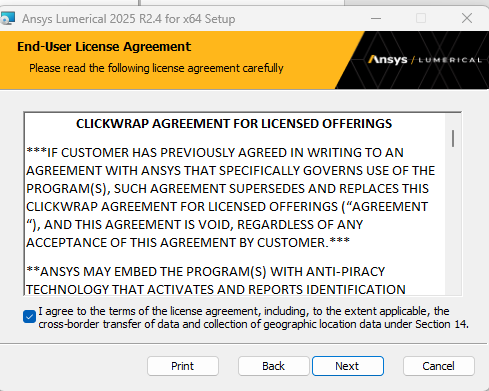
10. Click Next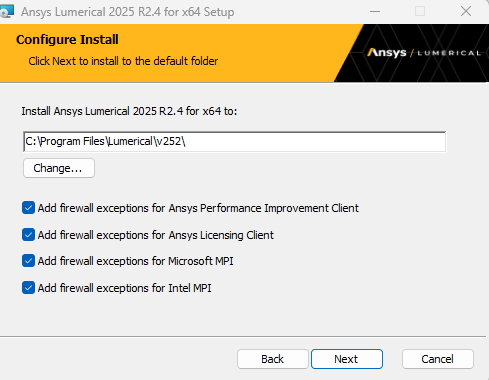
11. Click Install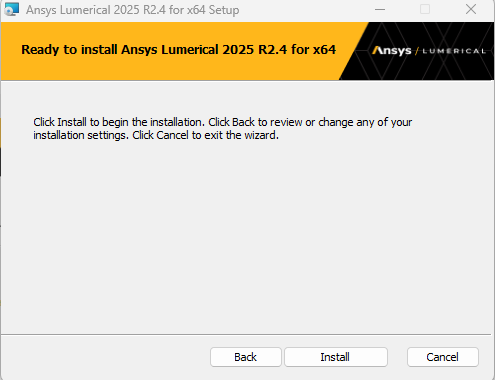
12. Installation will start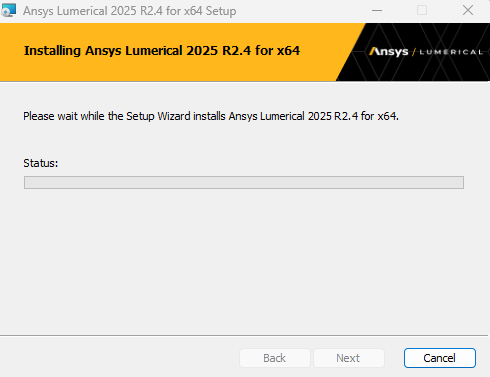
13. Installation is in progress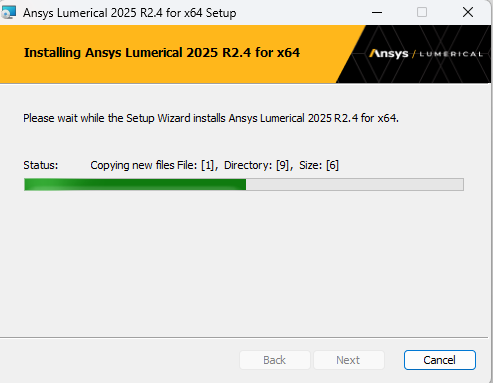
14. Click Finish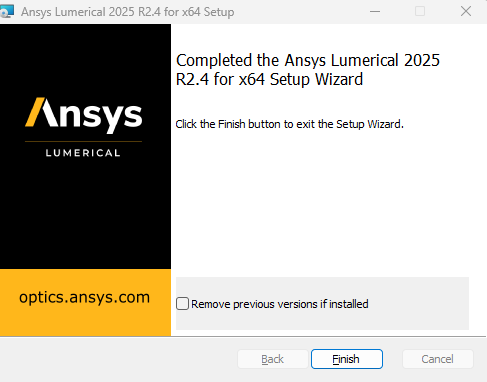
15. Now Go to Windows Start Menu and click on Ansys Optics 2025 R2.4 directory and click on
Ansys Optics Launcher 2025 R2.4
16. After Ansys Optics Launcher is open, click on “I have a license from Ansys Already”
17. Click on “I want to configure my license only for Lumerical products”
18. Click on “Go to Licensing Setup”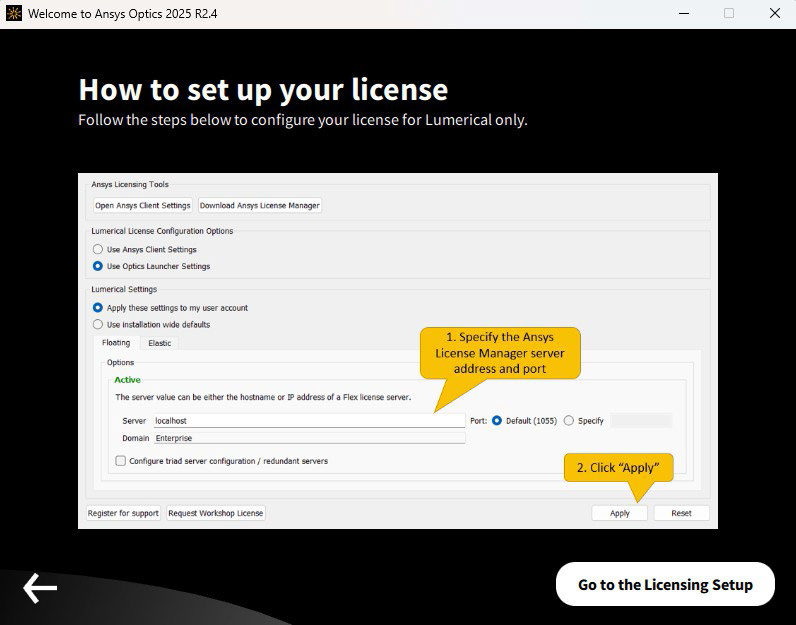
19. Click on “Open Ansys Client Settings”
20. Ansys Licensing Settings will open
21. Click on “Enabled” toggle to enable and fill up the licensing details in Port and Server1 field. Click on Test, after successful testing, click on Save.
Details of License server: Port: 1055
Server1: ansys.iitkgp.ac.in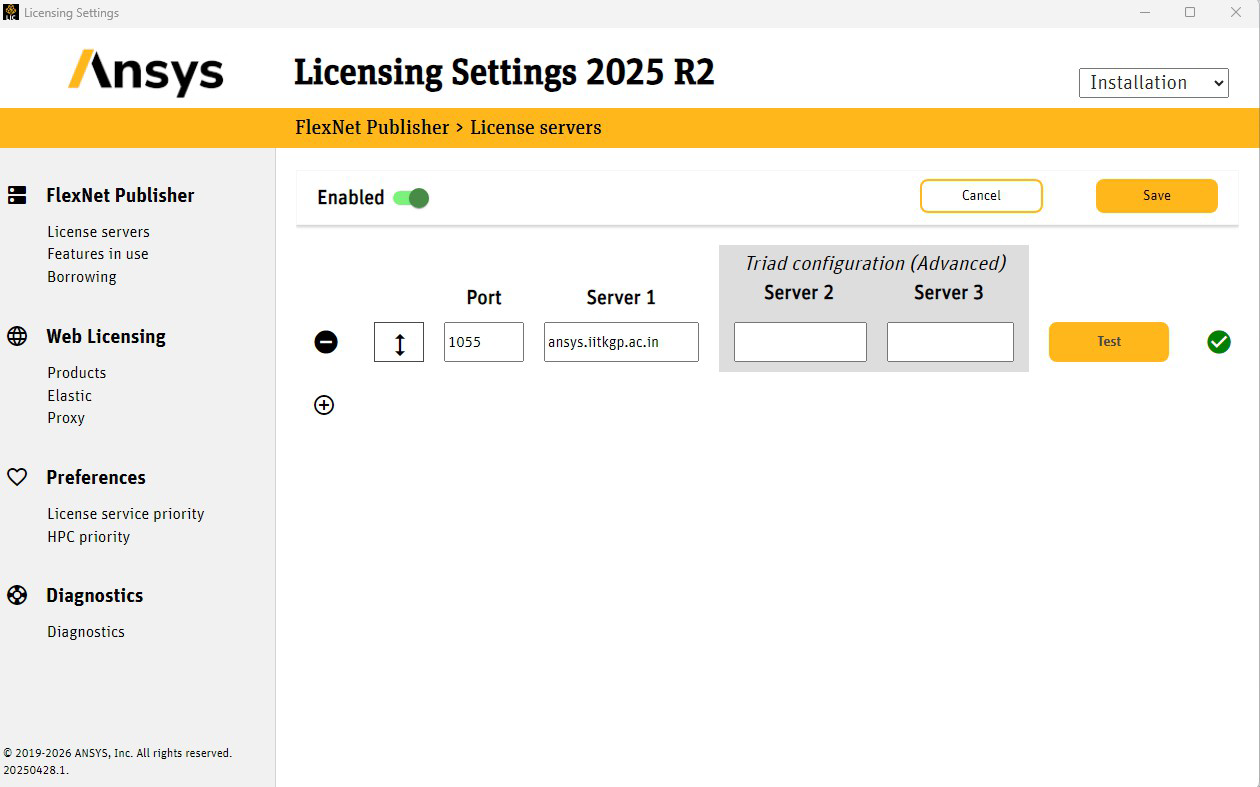
22. Close the Licensing Settings 2025 R2 application Popup and Go to already opened Ansys Optics Launcher.
23. Click “Use Ansys Client Settings”, click Apply
24. Click “Restart Now”.
25. Ansys Optics Launcher Will Reopen and It is successfully Installed.